
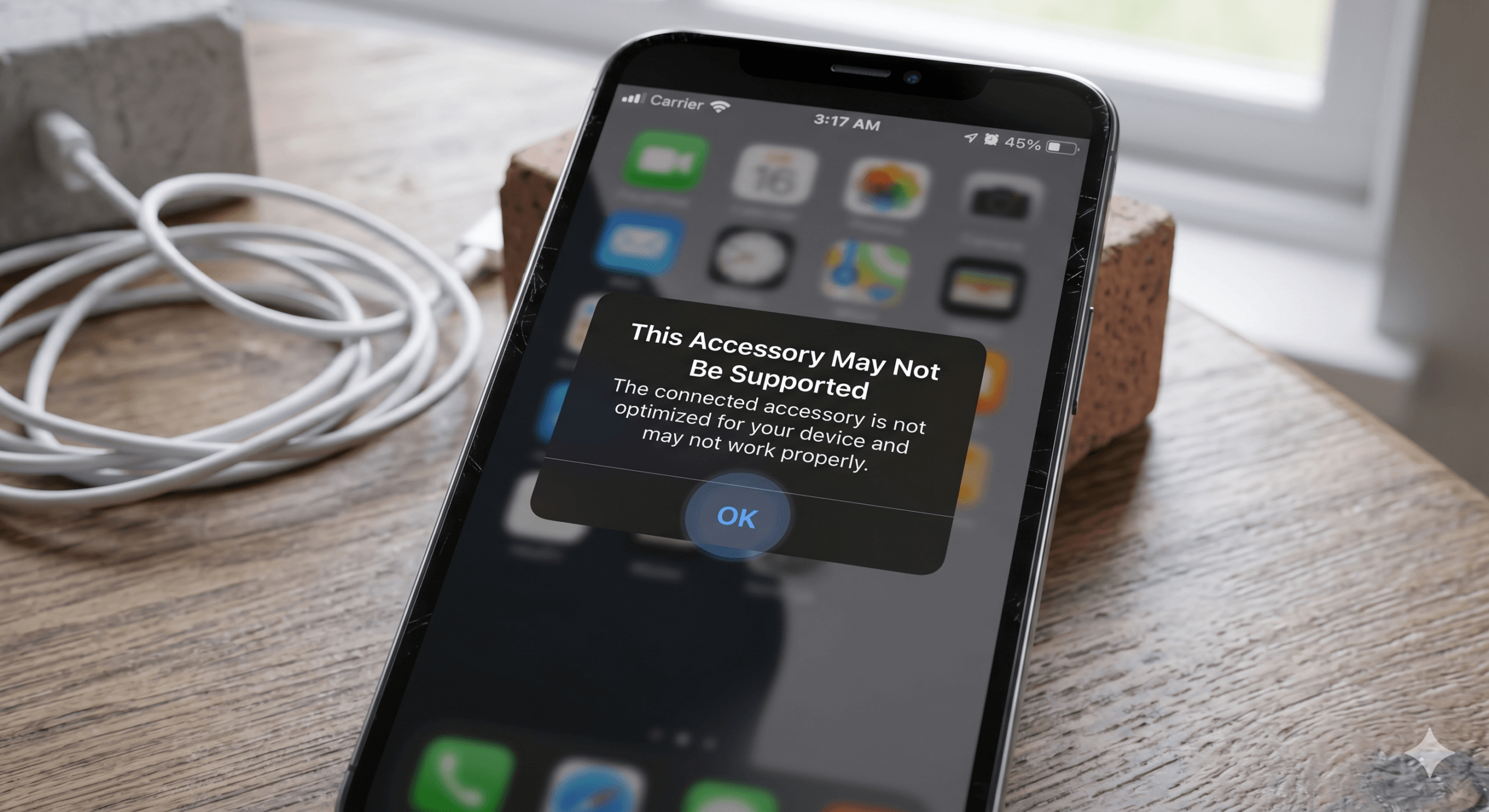
Direct Answer: “This accessory may not be supported” means iOS couldn’t authenticate the cable, charger, or accessory you plugged in. The message is iOS protecting your phone — not a sign that the phone is broken. Around 70% of cases at Mend My iPhone are fixed by a £10.00 charging-port clean (lint is the silent enemy). The next most common cause is a counterfeit or worn cable. Hardware port damage and software bugs account for the rest. The fix is almost always a charge port clean, buying reliable cables and pugs or a port replacement from £45.
Key Takeaways
- The error message is a protective response from iOS, not a fault with the phone itself. Your iPhone is telling you something — listen.
- The most common cause (around 70% of cases) is lint and pocket debris compacted into the charging port. A free clean fixes it in five minutes.
- The second most common cause is a counterfeit or worn cable. Replace it with one from a reputable brand and the warning usually disappears.
“This Accessory May Not Be Supported”
You plug your iPhone in to charge and a little dialog appears at the top of the screen: This accessory may not be supported. Sometimes it charges anyway, slower than usual. Sometimes it refuses to charge at all. Sometimes the message disappears for a few weeks and then comes back. It’s one of the most common iPhone issues we see, and the fix is usually quicker and cheaper than you’d think.
Here’s exactly what’s going on, why, and what to do about it.
What the message actually means
Every time you connect a cable, charger, or accessory to an iPhone, iOS runs a quick handshake. For Lightning ports (iPhone 14 and earlier), that handshake involves the MFi authentication chip inside the cable identifying itself to the phone. For USB-C ports (iPhone 15 onwards), it’s a USB Power Delivery handshake that negotiates voltage, wattage, and data lines.
When that handshake fails or returns ambiguous results, iOS displays the warning. It’s a deliberately cautious message — the phone has decided it can’t fully trust whatever’s been plugged in, so it’s flagging the issue rather than risking damage by charging full-speed through a connection it can’t verify.
Importantly, this is iOS doing its job correctly. The phone is protecting itself. Don’t ignore the warning by switching it off in Settings or hoping it’ll go away — fix the underlying cause.
The seven causes, ranked by how often we see them
| # | Cause | Frequency at our shop | Fix |
|---|---|---|---|
| 1 | Lint or debris in the charging port | ~70% | Free clean, 5 minutes |
| 2 | Counterfeit or fake MFi cable | ~15% | Replace with reputable brand cable, £15-25 |
| 3 | Worn or damaged cable (frayed, bent connector) | ~8% | Replace cable |
| 4 | Physically damaged charging port (loose, bent pins) | ~4% | Port replacement, from £45 |
| 5 | iOS software bug | ~2% | iOS update + restart |
| 6 | Liquid damage to port or internal contacts | ~1% | Workshop diagnostic, varies |
| 7 | Logic board fault | <1% | Workshop repair, varies |
Notice the headline number: over 90% of cases are fixed by a port clean or a new cable. Both of those are either free or cost less than the price of two takeaways. Don’t assume the phone needs a £200 repair until you’ve eliminated the cheap fixes.
The step-by-step fix — try these in order
Work through these in sequence. Stop when one of them resolves the warning.
Step 1 — Try a different cable. Borrow one from someone you trust, ideally a cable that’s known to work properly with their iPhone. If the warning disappears with the new cable, you’ve identified the culprit. Replace your cable with a reputable brand (Apple, Anker, Belkin, Nomad, Native Union — see our cables guide).
Step 2 — Inspect the cable for damage. Check both ends of the cable for fraying, bending at the connector, discolouration, or visible internal wires. If you see any of these, bin the cable. Continuing to use a damaged cable risks port damage, battery degradation, and in rare cases fire.
Step 3 — Clean the charging port. Power off the iPhone. Take a wooden or plastic toothpick (never metal — risk of shorting). Gently scrape against the back wall of the port and pull lint out. Most pockets contain considerably more compacted fluff than people realise — six months of pocket linting can completely fill the port. Don’t use compressed air directly into the port (it pushes debris deeper) or any liquid.
Step 4 — Restart the phone. A simple restart can clear transient software glitches. Hold Volume Up and the side button until the slide-to-power-off appears. Power off, wait 30 seconds, power back on. Try the cable again.
Step 5 — Update iOS. Settings → General → Software Update. Apple occasionally pushes adjustments to the accessory authentication handshake. If you’re more than one major iOS version behind, update and try again.
Step 6 — Check the connector physically. Plug the cable in and gently try to wiggle it side to side and up and down. If it wobbles freely, the port itself is worn out. If it sits firmly, the port is probably fine. Looseness usually means a port replacement is needed.
Step 7 — Bring it in for diagnosis. If steps 1-6 haven’t resolved it, the issue is likely hardware (port or logic board). Mend My iPhone offers a free diagnostic at the shop or by callout. Most diagnostics are completed in 15-30 minutes and you’ll know exactly what’s wrong before any work is quoted.
How to spot which cause it actually is
Some quick diagnostic logic to narrow it down before you start step-by-step troubleshooting:
- Warning appears intermittently with the same cable — usually counterfeit MFi (cloned chip occasionally rejected) or marginal port (lint coming and going)
- Warning appears every time, with every cable — usually port damage or major lint compaction
- Warning appears when the cable is at a specific angle — almost certainly a worn port or a wobbly cable connector
- Warning appears after the phone got wet — liquid damage to the port contacts
- Warning appeared right after an iOS update — possibly a software bug; wait a few days for Apple to push a point-update, or restart and check again
- Warning appeared right after dropping the phone — physical port damage, may need replacement
What NOT to do
- Don’t dismiss the warning by tapping “OK” and ignoring it. The warning is iOS telling you something is wrong. Pretending it isn’t doesn’t fix it.
- Don’t push the cable in harder. If the connection isn’t clean, force won’t help — and may damage pins.
- Don’t try to clean the port with a metal pin or a SIM-removal tool. Both can short out contacts inside the port.
- Don’t use compressed air directly into the port. It can push lint deeper and damage internal flex cables.
- Don’t buy another cheap cable from the same source. If a cable is triggering the warning, the next one from the same place will probably do the same thing.
The connection to other charging issues
This message often shows up alongside other charging problems. If you’re also seeing slow charging, intermittent charging, or your iPhone won’t wake from a flat battery, it’s worth reading our other charging guides:
- The true cost of a cheap iPhone cable — what to look for when buying, when to bin a cable
- iPhone 17 won’t turn on after the battery died — known firmware issue, MagSafe is the workaround
Frequently Asked Questions
What does “this accessory may not be supported” mean on an iPhone?
The message means iOS couldn’t authenticate the cable, charger, or accessory you plugged in. iPhones run a quick handshake with every accessory that connects, checking voltage, MFi authentication chip (Lightning) or USB-PD compliance (USB-C). When the handshake fails, iOS shows the warning. The most common causes are lint or debris in the charging port, a counterfeit or damaged cable, or a physically damaged port — not usually the phone itself.
Why does my iPhone keep saying “this accessory may not be supported” with a cable that used to work?
Cables degrade with use. Internal wires fray near the connector, the authentication chip can fail, or the connector pins wear out. A cable that worked perfectly six months ago can suddenly start triggering the warning as it reaches end of life. The other common cause is debris that’s gradually built up in the charging port — even one fluff pocket trip can be the difference between a clean handshake and a failed one.
How do I clean my iPhone charging port safely?
Power off the iPhone first. Use a wooden toothpick or a clean plastic toothpick — never metal. Gently scrape against the back wall of the port and pull lint out. Most ports contain a surprising amount of compacted pocket fluff. Don’t use compressed air directly into the port (it can push debris deeper) or any liquid. If you’re not confident, a free port clean at Mend My iPhone takes 5 minutes. If you don’t want to do it you can see our service here
Is “this accessory may not be supported” a sign of a counterfeit cable?
Yes, frequently. Counterfeit MFi cables use cloned authentication chips that iOS sometimes rejects randomly. If you bought the cable cheaply on a marketplace site, at a service station, or in a discount shop, and the warning appears intermittently, the cable is likely counterfeit. Replace it with a cable from a reputable brand (Apple, Anker, Belkin, Nomad, Native Union).
Does “this accessory may not be supported” damage the iPhone?
The warning itself is a protective measure — iOS shows it specifically because something isn’t right. The iPhone will usually still charge (sometimes slower) but won’t trust the accessory enough to charge at full speed. Continuing to use the failing accessory can cause gradual port wear and battery damage from voltage instability. Fix the underlying cause rather than ignoring the message.
Should I update iOS to fix the “accessory not supported” warning?
Worth trying as a quick step. Apple has occasionally pushed iOS updates that adjust the accessory authentication handshake, and a software bug can sometimes trigger the warning falsely. Update iOS to the latest version, restart the phone, then test again. If the warning still appears, the issue is hardware (cable or port) rather than software.
When should I take my iPhone to a repair shop for the accessory not supported error?
Bring it in if: cleaning the port and trying a known-good cable hasn’t fixed it; the warning appears with multiple different cables; the charging port physically wobbles when you plug something in; or the phone won’t charge at all. Mend My iPhone offers a free diagnostic — port cleaning is free, port replacement is from £45, and most cases resolve without any paid repair.
Get help if the steps above haven’t resolved it
Walk into the shop at 9 Southgate, Market Weighton, or book a callout to your home or workplace anywhere in East Yorkshire. Free diagnostic. Free port clean if that’s all it needs. Honest quote on anything bigger. 12-month warranty on every repair.
- Your iPad Just Got Cut Off From iPadOS 27 — Here’s What That Actually Costs You
- Water Damaged Amazon Fire Tablet: A Board-Level Repair Walkthrough
- Best Rugged Phones for Tradespeople and Farmers in 2026 — and Where to Actually Buy Them
- Call out iPhone repair to Haxby Bakehouse, York
- Don’t Throw Away Your “Incompatible” Windows 10 PC Just Yet
Leave a Reply