
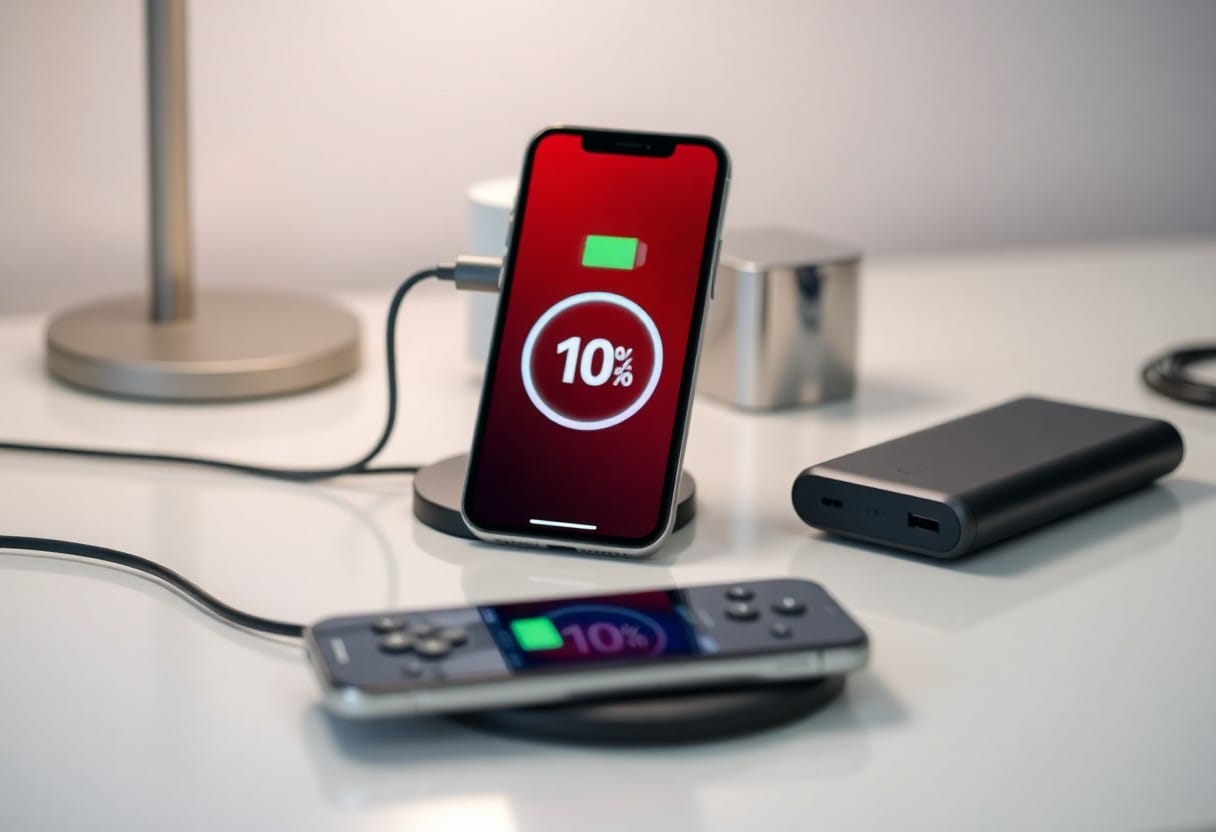
With your iPhone losing charge faster than usual, poor charging habits and background apps may be to blame. You can regain battery life by using optimized charging settings and genuine cables. Some fixes prevent long-term battery damage, while others boost daily performance. You don’t need expensive replacements-just smart, proven steps.
Key Takeaways:
- Background app activity is a major cause of fast battery drain; closing unused apps can significantly improve battery life.
- Screen brightness set too high or auto-brightness turned off often leads to unnecessary power use; adjusting these settings helps conserve charge.
- Older iPhone batteries lose capacity over time; checking battery health in Settings reveals whether a replacement is needed.
- Software updates frequently include battery optimization fixes; keeping iOS up to date can resolve unexpected drain issues.
- Location services running constantly on certain apps drain power quickly; limiting location access to “While Using” reduces the load.
- Using Low Power Mode during heavy usage or when charging isn’t available extends usable time before recharging.
- Charging with non-certified or damaged cables and adapters can slow charging and harm battery health over time; sticking to Apple-certified accessories is safer and more efficient.
The Drain of Background Spirits
Apps you aren’t actively using still consume power by running in the background. These hidden processes, often called “background spirits,” can drain your iPhone’s battery faster than expected. You might not notice them, but they’re constantly syncing, updating, or tracking-silently eating into your charge.
App Refresh Tactics
Background App Refresh lets apps update content automatically, but this feature often wastes battery on apps you rarely use. You should disable it for non-vital apps in Settings > General > Background App Refresh. Doing so gives you longer battery life with no real downside to daily use.
The Location Hunt
GPS and location services run constantly in many apps, even when not needed. This relentless search for your location can slash battery life quickly. Limit access to only vital apps like Maps or rideshares, and set permissions to “While Using” instead of “Always” for better control.
Every time an app checks your location-whether it’s social media, weather, or fitness trackers-it activates the GPS, Wi-Fi, and cellular radios. This trio works hard to pinpoint your position with precision, using significant power each time. Over hours, these frequent pings add up, often accounting for over 20% of daily battery loss. Review Settings > Privacy > Location Services to see which apps are hunting most often and adjust accordingly.
The Glare of the Display
Excessive screen brightness can drain your iPhone battery faster than any other setting. Lowering it manually or enabling Auto-Brightness helps conserve power significantly. For more ways to extend battery life, check out this 30 Fixes to Instantly Stop Your iPhone Battery from … guide with proven tips.
Brightness Management
Reducing screen brightness to 40% or lower can double your battery life during daily use. Enable Auto-Brightness in Settings > Display & Brightness so your iPhone adjusts based on surroundings, ensuring you’re not wasting energy on unnecessary glare.
The Dark Mode Choice
Switching to Dark Mode reduces power usage on OLED screens. Since black pixels turn off completely, your display consumes less energy when viewing dark backgrounds, especially during evening use or low-light environments.
Dark Mode isn’t just easier on the eyes-it’s a smart battery-saving move. On iPhones with OLED displays like the iPhone 12 and later, black pixels are truly off, meaning they use zero power. This makes Dark Mode one of the most effective display-related fixes for extending battery life, particularly if you use your phone at night or in dark settings.
The System Refresh
Rebooting your iPhone clears temporary system files that may be causing excessive battery drain. A simple restart can resolve background glitches slowing performance and consuming power. This quick fix often delivers an immediate improvement in battery life, especially after heavy usage or app crashes.
Software Updates
Updating your iPhone’s software ensures you have the latest battery optimizations from Apple. Outdated iOS versions often lack critical power management fixes, leading to faster drain. Check Settings > General > Software Update to install the newest release and boost efficiency.
Resetting Settings
Restoring system settings erases network, display, and privacy configurations that might be forcing your iPhone to work harder. You won’t lose personal data, but background processes tied to misconfigured options are cleared, often reducing unnecessary battery use.
When you reset settings, your iPhone returns system preferences-like Wi-Fi passwords, Bluetooth pairings, and display brightness-to default. This can eliminate hidden power drains caused by conflicting connections or aggressive background app activity. It’s one of the safest ways to improve battery performance without risking data loss, and many users see results after just one cycle.
To wrap up
Upon reflecting on your iPhone’s fast-draining battery, you now have proven charging solutions that deliver real results. Using optimized charging settings, genuine accessories, and managing power-hungry apps directly improves battery performance. You don’t need complex fixes-simple, consistent habits make the biggest difference in daily battery life.
FAQ
Q: Why is my iPhone battery draining so fast suddenly?
A: A sudden drop in battery life can be caused by recent software updates, background app activity, or degraded battery health. iOS updates sometimes introduce bugs or increased power demands. Apps running in the background-especially social media, navigation, or streaming services-can consume significant power. Go to Settings > Battery to see which apps are using the most energy. Also check Settings > Battery > Battery Health to see if your maximum capacity has dropped below 80%, which means the battery may need replacement.
Q: Does turning off background app refresh really help save battery?
A: Yes, disabling background app refresh reduces how often apps update content when not in use. This cuts down on data fetching, location tracking, and processor use. Open Settings > General > Background App Refresh, then turn it off entirely or limit it to Wi-Fi only. Selective disabling for power-hungry apps like Facebook or Instagram often leads to noticeable improvements in battery longevity.
Q: Is it safe to use third-party chargers and cables?
A: Not all third-party chargers are safe. Cheap or uncertified chargers can deliver unstable power, damage your battery over time, or even pose fire risks. Use MFi-certified (Made for iPhone) cables and chargers from reputable brands. These meet Apple’s safety and performance standards. Avoid using chargers from unknown brands, especially those sold at gas stations or online marketplaces without verified reviews.
Q: Should I charge my iPhone overnight?
A: Modern iPhones have built-in safeguards that stop charging at 100%, so leaving it plugged in overnight won’t overcharge the battery. However, keeping the battery at 100% for long periods can increase wear. Enable Optimized Battery Charging in Settings > Battery > Battery Health. This feature learns your routine and delays charging past 80% until you need to use the phone, reducing battery aging over time.
Q: Does lowering screen brightness help extend battery life?
A: Yes, the display is one of the biggest power consumers. Reducing brightness-even slightly-can make a real difference. Swipe down from the top right to access Control Center and adjust the brightness slider. Turn on Auto-Brightness in Settings > Accessibility > Display & Text Size to let the iPhone adjust based on lighting conditions. This prevents the screen from running at full brightness unnecessarily.
Q: Can turning off Location Services improve battery performance?
A: Yes, constant GPS use drains battery quickly. Some apps check your location even when not needed. Go to Settings > Privacy > Location Services and review which apps have access. Set most apps to “While Using” instead of “Always.” Disable location access entirely for apps that don’t need it, like games or calculators. This reduces background location polling and saves power.
Q: What should I do if my iPhone battery still drains fast after trying these fixes?
A: If battery life remains poor, check for a failing battery. Visit Settings > Battery > Battery Health and see if “Maximum Capacity” is below 80%. If it is, the battery is worn and needs replacement. Visit an Apple Store or authorized service provider. If the battery is healthy, consider a factory reset after backing up your data. This can eliminate software glitches or corrupted settings causing excessive drain.
Leave a Reply