
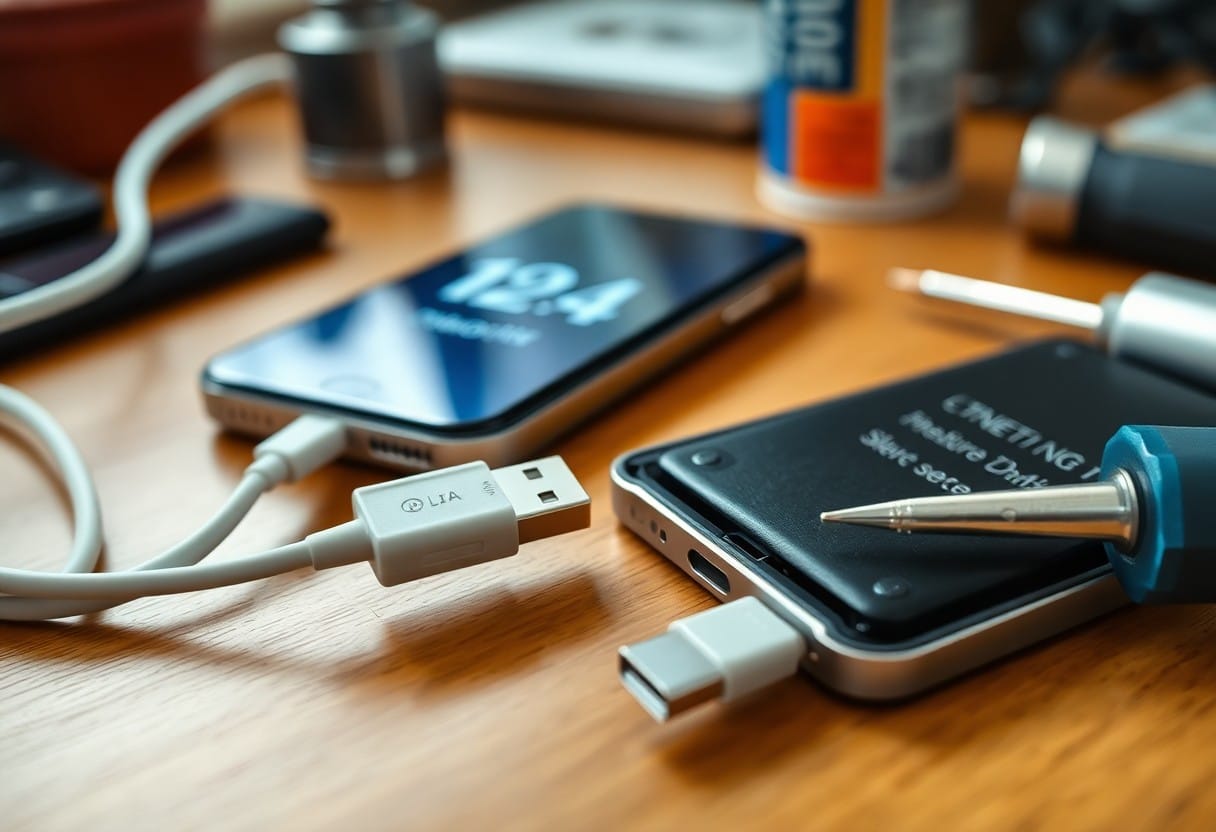
Key Takeaways:
- Check the charging cable and adapter first-damaged or non-certified accessories are common causes of slow charging.
- Dirt or debris in the iPhone’s charging port can block proper connection; clean it gently with a dry brush or toothpick.
- Background apps and high battery usage can slow down charging; restart the phone or enable Airplane Mode to speed it up.
- Using the iPhone while charging, especially for power-heavy tasks like gaming or video, reduces charging speed significantly.
- Older batteries lose capacity over time-check battery health in Settings to see if replacement is needed.
- Software bugs can affect charging performance; updating to the latest iOS version often resolves these issues.
- Third-party chargers may not deliver optimal power-use Apple-certified or MFi (Made for iPhone) accessories for best results.
Primary Factors Affecting iPhone Charging Speed
Your iPhone’s charging speed depends on several key elements.
- Battery chemical age reduces capacity over time
- Environmental temperature triggers thermal throttling
- Background app refresh increases system load
- Charger wattage and cable quality directly impact power delivery
Perceiving these factors helps you diagnose slow charging effectively.
Battery Chemical Age and Health Percentage
Over time, your iPhone’s battery undergoes chemical aging, reducing its maximum capacity. iOS displays this as Battery Health Percentage in Settings. If it drops below 80%, charging slows and performance declines. Replacing the battery restores faster charging and stability, especially on older models.
Environmental Temperature and Thermal Throttling
Extreme heat or cold triggers thermal throttling, limiting charge speed to protect internal components. Your iPhone may display a temperature warning or pause charging entirely. Keeping the device in a moderate climate ensures optimal power intake and prevents long-term damage.
| Condition | Effect on Charging |
| Below 0°C (32°F) | Charging pauses; battery drains faster |
| Between 0°C-35°C (32°F-95°F) | Optimal charging range; full speed maintained |
| Above 35°C (95°F) | Thermal throttling activates; charging slows or stops |
When your iPhone detects unsafe temperatures, it adjusts charging behavior automatically. High ambient heat, direct sunlight, or using power-intensive apps while charging raises internal temperature. The system may reduce charge flow or halt it completely to prevent battery degradation. Removing thick cases and avoiding hot environments helps maintain consistent charging speeds.
Background App Refresh and System Activity
Active apps running in the background consume power even while charging. When Background App Refresh is enabled, apps update content, slowing net charge gain. Turning it off or closing unused apps improves effective charging speed, especially on low-wattage chargers.
Your iPhone may appear to charge slowly because it’s simultaneously powering heavy system tasks. Downloads, backups, location services, or app updates draw current while charging, reducing net gain. Check battery usage in Settings to identify power-hungry apps. Limiting background activity lets more energy go toward charging instead of being used up in real time.
Types of Charging Technologies and Equipment
Different charging technologies impact your iPhone’s power intake speed. Using the right cables, adapters, and wireless chargers makes a noticeable difference. Perceiving about iPhone charge speeds helps you choose compatible gear for optimal performance.
| Technology | Description |
| Standard Wired Charging | Uses Lightning cable with 5W adapter; slower but widely compatible |
| USB-C Power Delivery | Fast charging with 20W+ adapter; requires USB-C to Lightning cable |
| MagSafe Charging | 15W magnetic wireless; aligns automatically and reduces misalignment loss |
| Qi Wireless Charging | Standard wireless up to 7.5W; prone to misalignment and overheating |
| MFi-Certified Gear | Apple-approved accessories ensuring safety, reliability, and full functionality |
Standard Wired Charging vs. USB-C Power Delivery
You get faster results with USB-C Power Delivery than standard wired charging. The older method uses a 5W adapter, while PD supports 20W or higher. Perceiving the difference helps you decide when speed matters most.
MagSafe vs. Traditional Qi Wireless Standards
MagSafe delivers up to 15W with precise magnetic alignment, while traditional Qi charging maxes out at 7.5W on iPhones and often misaligns. You’ll notice quicker top-ups and less frustration using MagSafe. Perceiving this gap explains why Apple pushes magnetic adoption.
Magnetic alignment in MagSafe ensures consistent contact, reducing energy loss during charging. Traditional Qi pads rely on manual placement, which often leads to inefficient power transfer or interrupted sessions. You benefit from stronger magnets, optimized coil positioning, and built-in temperature management. This makes MagSafe not just faster, but also more reliable over time compared to standard Qi.
The Role of MFi (Made for iPhone) Certification
MFi-certified accessories meet Apple’s standards for performance and safety. You avoid risks like slow charging or port damage by choosing MFi-labeled cables and adapters. Non-certified gear may seem cheaper, but it often lacks proper circuitry. Perceiving the long-term value makes certification worth the investment.
When you use non-MFi cables, your iPhone may display warnings or refuse to charge altogether. These uncertified accessories can degrade battery health over time due to unstable voltage output. MFi products undergo rigorous testing to ensure compatibility, durability, and safe power delivery. You protect your device and maintain optimal charging speeds by sticking with certified gear-especially important for daily drivers and frequent travelers.
Step-by-Step Troubleshooting for Slow Charging
Follow this structured approach to identify and fix slow charging issues efficiently. Each step isolates potential causes, from hardware faults to software hiccups, ensuring you don’t overlook common but easily missed problems.
| Step | Action |
| 1 | Inspect and clean the charging port |
| 2 | Test with different cables and adapters |
| 3 | Perform a forced restart |
Inspecting and Cleaning the Lightning or USB-C Port
Dust, lint, or debris in your iPhone’s port can block proper connection. Power off the device and use a dry, soft brush or compressed air to gently remove buildup. Never insert metal objects-this can damage the pins and cause permanent charging issues.
Testing Alternative Cables and Power Adapters
A faulty cable or underpowered adapter often causes slow charging. Swap in a known-working, Apple-certified cable and adapter to test. If charging improves, your original hardware was likely the culprit-replace it immediately.
Many users overlook that not all USB cables support fast charging. Even if a cable powers your iPhone, it may only deliver minimal current. Use an MFi-certified cable with a 20W or higher adapter to ensure optimal performance. Third-party accessories without certification can trigger charging throttling or safety warnings.
Performing a Forced Restart to Clear Software Glitches
Software bugs can interfere with power management. A forced restart resets system processes without erasing data. This simple action often restores normal charging, especially after an update or app crash causes unexpected battery behavior.
Press and quickly release the volume up button, then the volume down, then press and hold the side button until the Apple logo appears. This forces the system to reboot at a low level, clearing temporary glitches affecting charging circuits. It’s safe and takes less than 30 seconds-try it before pursuing hardware repairs.
Pros and Cons of Different Charging Accessories
Choosing the right charging accessory impacts your iPhone’s speed and long-term battery health. Below is a breakdown of common options to help you make an informed decision. For more details, check out this How to Fix iPhone Charging Slowly? A Full Guide 2026.
| Accessory Type | Pros & Cons |
|---|---|
| 20W+ Fast Charger | Charges quickly; may generate more heat over time |
| 5W Original Brick | Gentle on battery; extremely slow for modern use |
| MFi-Certified Cable | Safe and reliable; slightly more expensive |
| Non-Certified Cable | Cheap; risk of damage or slow charging |
| Wireless Charger (Qi) | Convenient; slower and less efficient than wired |
| Car Charger | Useful on the go; output varies by model |
| Power Bank | Portable power; slower than wall charging |
| Multi-Port Charger | Charges multiple devices; shared output reduces speed |
| MagSafe Charger | Strong alignment and fast wireless; runs hot |
| Solar Charger | Eco-friendly; unreliable and slow in low light |
High-Wattage Fast Chargers vs. Low-Wattage Bricks
You’ll charge your iPhone much faster with a 20W or higher adapter. These bricks deliver power efficiently, cutting charge time in half compared to the old 5W version. Heat buildup is a real concern, though, especially with prolonged use.
Third-Party Cables vs. Official Apple Hardware
You might save money with generic cables, but not all meet Apple’s safety standards. MFi-certified options perform like genuine ones, while uncertified picks risk connection issues or even hardware damage over time.
Apple’s official cables are built to precise specs, ensuring stable data transfer and charging. Third-party cables vary widely-some are excellent, others fail within weeks. Look for the MFi (Made for iPhone) badge to avoid damaging your port or triggering warning alerts on your device.
Power Banks vs. Wall Outlet Charging Stability
You’ll find power banks handy when outlets aren’t nearby, but they often charge slower due to lower output. Wall charging offers consistent, stable power, especially with a high-quality adapter and cable.
Wall outlets provide a direct, uninterrupted current, making them the most reliable way to charge. Power banks, while portable, lose efficiency over time and may not deliver full speed unless they support PDO or USB-PD protocols. For fastest results, stick to wall charging when possible.
Expert Tips for Optimizing Charging Performance
Maximize your iPhone’s charging speed and battery health with these expert-backed strategies.
- Use Apple-certified chargers for safe, efficient power delivery
- Keep your iPhone updated to benefit from optimized battery algorithms
- Avoid charging in extreme temperatures to prevent performance throttling
Assume that small changes in habits lead to long-term gains in battery longevity.
Enabling Optimized Battery Charging Settings
Turn on Optimized Battery Charging in Settings > Battery > Battery Health to reduce wear. This feature learns your daily routine and delays charging past 80% when idle. Assume that smarter charging patterns extend overall battery lifespan.
Managing Connectivity Features During Power Cycles
Disable Bluetooth, Wi-Fi, and cellular data while charging to minimize background activity. These services draw power even when idle, slowing down charge times. Assume that reducing connectivity load speeds up the process.
When your iPhone charges, every active radio-like 5G, Wi-Fi, or GPS-consumes energy, creating resistance to incoming power. By switching on Airplane Mode or manually turning off these features, you eliminate unnecessary drain. This is especially helpful when charging quickly before leaving the house or during low-battery emergencies.
Proper Storage Habits to Prevent Voltage Drops
Store your iPhone with around 50% battery charge if not using it for days. Fully drained or fully charged batteries degrade faster in storage. Assume that balanced charge levels prevent deep discharge damage.
Leaving your iPhone plugged in at 100% or letting it drop to 0% before storage stresses the lithium-ion cells. Prolonged exposure to these extremes can trigger voltage instability and reduce capacity over time. For long-term storage, power it down and keep it in a cool, dry place to maintain chemical balance within the battery.
Advanced Hardware Diagnostics and Repair
Some charging issues stem from internal hardware problems that require deeper inspection. If basic fixes haven’t helped, it’s time to assess your iPhone’s core components. Learn more about potential causes by visiting Why Is My Phone Charging Slowly.
- Check for abnormal battery swelling or overheating during charge
- Inspect the charging port for internal damage or debris
- Test with a known-good cable and charger to rule out external factors
- Monitor battery health via Settings > Battery > Battery Health
- Observe if the device restarts or shuts down unexpectedly while charging
| Symptom | Possible Cause |
|---|---|
| Phone charges only when cooled | Thermal throttling due to battery or logic board issue |
| Charging stops at specific percentages | Failing battery cells or corrupted power management system |
| No charging despite connected cable | Damaged charging port or internal power circuit failure |
Identifying Signs of Internal Component Failure
You might notice your iPhone gets unusually warm, shuts down randomly, or only charges at certain angles. These are strong indicators of internal damage like a failing battery or compromised charging circuit. If cleaning and cable changes don’t resolve it, hardware failure is likely.
Determining When to Seek Professional Battery Replacement
Your battery may need professional replacement if maximum capacity is below 80% or if performance throttling occurs frequently. Ignoring this can lead to unreliable usage and sudden shutdowns. Only certified technicians should handle internal repairs to avoid further damage.
When your iPhone’s battery health drops significantly, it struggles to hold a charge and deliver consistent power. This wear is normal over time, but when performance degrades noticeably-especially if the phone dies quickly even after charging-it’s time for a professional battery replacement. Apple or authorized service providers use genuine parts and ensure safe, calibrated installation, preserving your device’s longevity and safety.
Conclusion
Considering all points, you now have a clear path to identify and resolve why your iPhone charges slowly. From checking cables and power sources to inspecting settings and battery health, each step directly addresses common causes. Applying these fixes restores efficient charging and extends your device’s daily usability.
FAQ
Q: Why is my iPhone charging so slowly?
A: Slow charging can happen for several reasons. The most common causes include using a low-wattage charger, a damaged or frayed charging cable, dirt buildup in the charging port, running power-intensive apps while charging, or having an older battery with reduced capacity. Background processes like GPS, streaming, or software updates also draw power and can make charging seem slower.
Q: Does using my iPhone while charging affect charging speed?
A: Yes. Using your iPhone while it’s plugged in increases power consumption. Tasks like gaming, video streaming, or using GPS navigation require significant energy. If the device uses power faster than the charger supplies it, the battery level may rise very slowly or even drop. For faster charging, turn on Airplane Mode or power off the device.
Q: How can I check if my charging cable or adapter is causing slow charging?
A: Inspect the cable for fraying, bends, or exposed wires. Try a different Apple-certified USB-C or Lightning cable and a higher-wattage charger (like a 20W adapter). If charging improves, the original cable or adapter was likely the issue. Avoid third-party chargers that aren’t MFi-certified, as they may not deliver stable power.
Q: Can a dirty charging port slow down charging?
A: Absolutely. Dust, lint, or debris in the charging port can block proper connection between the cable and iPhone. This leads to intermittent charging or reduced power transfer. Turn off the iPhone and gently clean the port with a dry, soft brush or a non-conductive tool like a wooden toothpick. Avoid metal objects to prevent damage.
Q: Does battery health impact charging speed?
A: Yes. As an iPhone battery ages, its maximum capacity decreases. An older battery may struggle to hold a charge or charge efficiently. Check battery health in Settings > Battery > Battery Health. If maximum capacity is below 80%, the battery may need replacement. iOS may also limit performance on degraded batteries, affecting charging behavior.
Q: Can software issues cause slow charging?
A: Sometimes. A software bug or glitch can interfere with power management. Restarting the iPhone often resolves temporary issues. Updating to the latest iOS version can fix known charging problems. If slow charging started after an update, check Apple’s support forums for reported bugs or wait for a patch.
Q: What should I do if none of the troubleshooting steps work?
A: If the iPhone still charges slowly after trying different cables, chargers, cleaning the port, and restarting, the issue may be hardware-related. Visit an Apple Store or authorized service provider to test the battery, charging port, or internal components. Persistent slow charging could indicate a failing battery or logic board issue needing professional repair.
Leave a Reply