
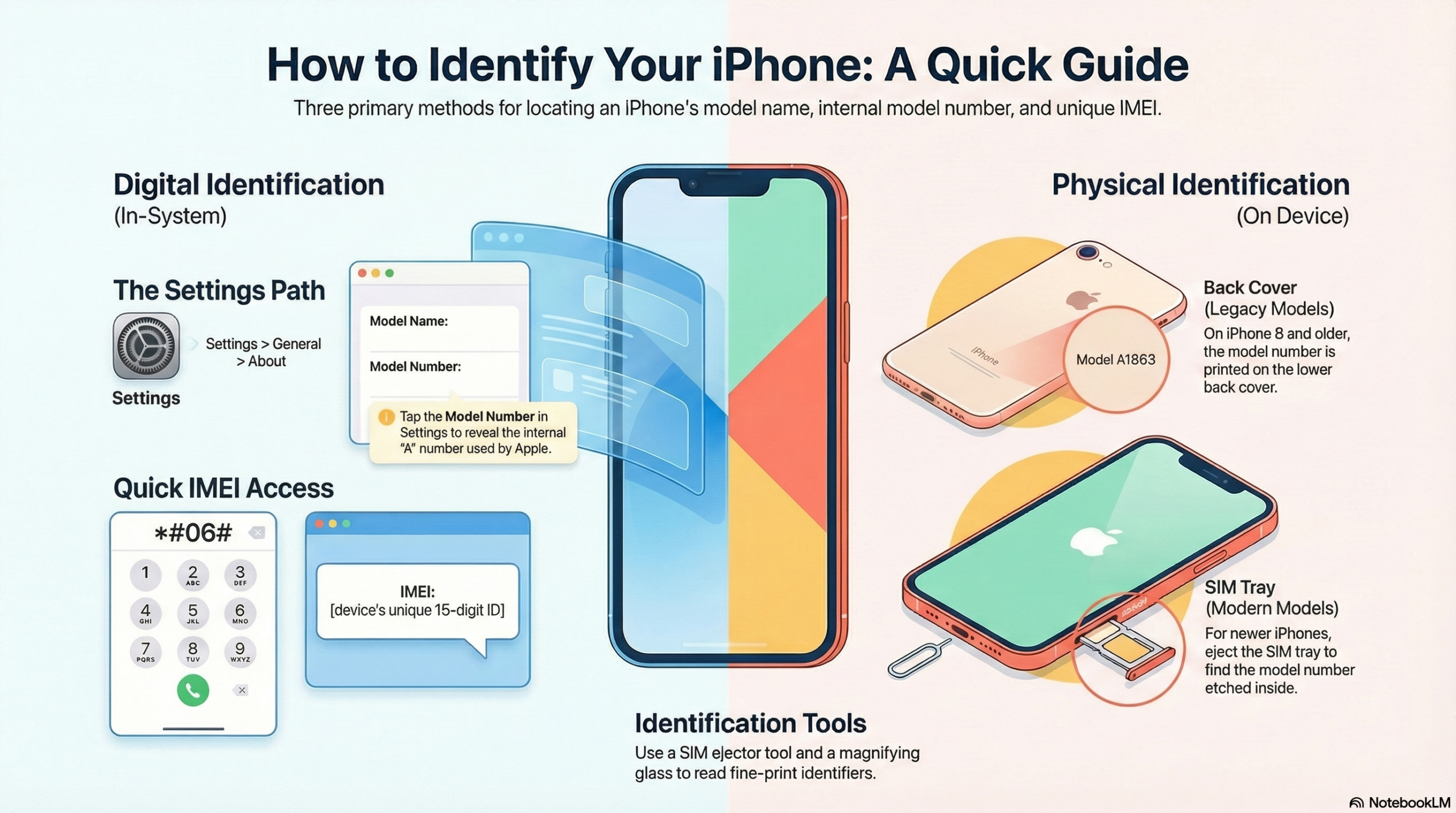
Most iPhone users find themselves scratching their heads when asked about their specific model. Apple releases new iPhones regularly, making it super easy to lose track of versions. Knowing your model is critical for accessory compatibility, getting the right software updates, and troubleshooting any issues you might encounter. This guide makes identifying your iPhone model a breeze!
Key Takeaways:
You know, it’s pretty wild how many ways there are to figure out which iPhone you’re holding, even if you can’t find that tiny model number on the back. Seriously, the article points out a bunch of methods, so you’re never really stuck wondering.
The real secret sauce is that tiny model number – it’s like a fingerprint for your phone. You can find it in your settings or, on older phones, just printed right there on the back. That number is your golden ticket to quickly identifying your device.
Don’t have the number handy? No sweat! Just looking at your phone’s physical features can give you a lot of clues. Things like the camera setup or button placement often change between models, and those little differences can tell you a lot about what you’ve got.
Your phone’s IMEI number is another super powerful tool. It’s unique to your device, and you can plug it into Apple’s website for a full rundown of your iPhone’s details. It’s like a digital ID card for your phone, pretty neat, huh?
Knowing your iPhone model isn’t just for bragging rights; it actually helps with a ton of practical stuff. From finding the right accessories to making sure you’re getting the correct software updates, figuring out your model makes your life a whole lot easier.
How to Locate the Model Number via System Settings
Navigating the Settings menu
You’ll find the easiest way to identify your device is by going right into its settings. Just open the Settings app, then tap on General, and finally select About. It’s usually a pretty straightforward path.
Identifying the Model Name and Number
Within the “About” section, you’ll see both the Model Name and Model Number. That’s where all the good stuff is! A quick tap on the Model Number will even reveal the ‘A’ series identifier, which is super helpful for more specific identification.
Once you’re in the “About” screen, it’s like a little treasure trove of information about your iPhone. You’ll definitely spot the Model Name first, telling you exactly which iPhone you’ve got – like an iPhone 15 Pro Max or an older iPhone SE. Right below that, or sometimes next to it, is the Model Number. This number is your golden ticket, and here’s a little trick: if you tap on that Model Number, it’ll change to show you the ‘A’ series identifier. This ‘A’ number is what Apple uses internally, and it’s often the most precise way to confirm your exact model, especially when you’re looking up parts or compatibility.
Here’s a quick look at popular iPhone models and their model numbers:
- iPhone 16 Pro Max: A3084, A3295, A3297, A3296
- iPhone 16 Pro: A3083, A3292, A3294, A3293
- iPhone 16 Plus: A3082, A3289, A3291, A3290
- iPhone 16: A3081, A3286, A3288, A3287
- iPhone 15 Pro Max: A2849,A3105,A3106,A3108
- iPhone 15 Pro: A2848,A3101,A3102,A3104
- iPhone 15 Plus: A2847,A3093,A3094,A3096
- iPhone 15: A2846,A3089,A3090,A3092
- iPhone 14 Pro Max: A2651, A2893, A2894, A2895, A2896
- iPhone 14 Pro: A2650, A2889, A2890, A2891, A2892
- iPhone 14 Plus: A2632, A2885, A2886, A2887, A2888
- iPhone 14: A2649, A2881, A2882, A2883, A2884
- iPhone SE (3rd Generation): A2595, A2782, A2784, A2785, A2783
- iPhone 13 Pro Max: A2484, A2641, A2644, A2645, A2643
- iPhone 13 Pro: A2483, A2636, A2639, A2640, A2638
- iPhone 13: A2482, A2631, A2634, A2635, A2633
- iPhone 13 Mini: A2481, A2626, A2629, A2630, A2628
- iPhone SE (2nd Generation): A2275, A2298, A2296
- iPhone 12 Pro Max: A2342, A2410, A2412, A2411
- iPhone 12 Pro: A2341, A2406, A2408, A2407
- iPhone 12: A2172, A2402, A2404, A2403
- iPhone 12 Mini: A2176, A2398, A2400, A2399
- iPhone 11 Pro Max: A2161, A2220, A2218
- iPhone 11 Pro: A2160, A2217, A2215
- iPhone 11: A2111, A2223, A2221
- iPhone XS Max: A1921, A2101, A2102, A2103, A2104
- iPhone XS: A1920, A2097, A2098, A2099, A2100
- iPhone XR: A1984, A2105, A2106, A2107, A2108
- iPhone X: A1865, A1901, A1902
- iPhone 8 Plus: A1864, A1897, A1898
- iPhone 8: A1863, A1905, A1906
- iPhone 7 Plus: A1661, A1784, A1785
- iPhone 7: A1660, A1778, A1779
- iPhone SE (1st Generation): A1723, A1662, A1724
- iPhone 6s Plus: A1634, A1687, A1699
- iPhone 6s: A1633, A1688, A1700
- iPhone 6 Plus: A1522, A1524, A1593
- iPhone 6: A1549, A1586, A1589
- iPhone 5s: A1453, A1457, A1518, A1528
- iPhone 5c: A1456, A1507, A1516, A1529, A1532
- iPhone 5: A1428, A1429, A1442
- iPhone 4S: A1431, A1387
- iPhone 4: A1349, A1332
- iPhone 3GS: A1325, A1303
- iPhone 3G: A1241, A1324
- Original iPhone: A1203
How to Identify Your iPhone Model | Simple Guide
Tips for Finding Physical Identifiers on the Device Body
Ever wonder if you can just *look* at your iPhone to figure out its model? You absolutely can! Physical identifiers are a quick, no-fuss way to pinpoint your device’s identity. This method works great when you can’t power on your phone or access its software.
* Look for the model number directly on your device.
* Older iPhones, up to the iPhone 8 and 8 Plus, show the number on the back cover.
* Newer iPhone models tuck the number away on the SIM tray.
After checking these spots, you’ll likely have your model number in hand.
Inspecting the back cover of older models
Got an older iPhone, maybe an 8 or 8 Plus? You’re in luck! The model number is printed right there on the back cover, usually near the bottom. It’s often small text, so you might need good lighting or even a magnifying glass to spot it easily.
Checking the SIM tray for newer versions
What about those sleek, newer iPhones? Where’d they hide the model number? For these models, you’ll want to check the SIM tray. Seriously, it’s a tiny detail, but it’s there. Just pop out the tray, and you’ll often find the number etched onto it.
Finding the model number on the SIM tray for newer iPhones can be a bit tricky, but it’s a surefire way to identify your device. You’ll need a SIM ejector tool, or even a straightened paperclip, to carefully remove the tray. Once it’s out, look closely at the side of the tray that faces inwards when inserted into the phone. The model number is usually printed in very fine print there, sometimes almost microscopic, so don’t be afraid to grab a flashlight or a magnifying glass for a better view. It’s a small detail that makes a big difference in pinpointing your exact iPhone model.
How to Identify Your iPhone Model | Simple Guide
Evaluating Model Factors Through Physical Features
You can easily spot differences in your iPhone’s physical features like screen size, camera lenses, and build materials. These characteristics are like fingerprints for each model, making visual identification straightforward. Just compare what you see on your device to official Apple images online. This method often gives you a quick answer without needing to explore settings.
Assessing Camera Lens Configurations
The number of camera lenses on your iPhone’s back is a big clue. Older models might have just one, while newer Pro versions often sport three. Counting these lenses helps narrow down your search significantly.
Comparing Screen Dimensions and Materials
Screen size and the materials used in the iPhone’s construction really set models apart. You’ll notice differences in how big the screen is, and even the feel of the device in your hand can tell you a lot.
| Screen and Material Indicators | |
|---|---|
| Screen Size | Compare your iPhone’s display dimensions to known model specifications. |
| Build Materials | Notice if your iPhone has a glass back, aluminum frame, or stainless steel edges. |
Look closely at your iPhone’s screen. Is it a smaller, more compact display, or does it stretch almost to the edges, like on a Max model? Also, pay attention to the build materials. Is it sleek glass on the back, or does it feel more like a matte aluminum? You can tell a lot about a phone from its heft and finish, which often changes with different models and their premium tiers.
| Visual Comparison Guide | |
|---|---|
| Official Apple Images | Always cross-reference your observations with high-quality photos from Apple’s website. |
| Key Differentiators | Focus on unique design elements that are specific to certain iPhone generations. |
How to Use the IMEI Number for Detailed Identification
Locating your iPhone’s IMEI is super straightforward, right? You’ve got a few options: dialing *#06#, peeking at the SIM tray, or just heading into your Settings. Once you’ve got that unique 15-digit code, you can use it with Apple’s IMEI lookup for some seriously detailed device information. It’s like your phone’s personal ID card.
Retrieving the IMEI via dialer code
Want the quickest way to find your IMEI? Just dial \*#06# on your iPhone’s keypad. The number pops right up on your screen, ready for you to jot down or copy. Pretty neat, huh?
Utilizing the Apple IMEI lookup tool
So, you’ve got your IMEI, now what? You’ll want to head over to Apple’s official IMEI lookup tool – it’s your go-to for unlocking a bunch of specifics about your device.
This tool is incredibly handy for confirming your iPhone’s warranty status, checking if it’s still under AppleCare coverage, or even seeing if it’s been reported lost or stolen. You just punch in that 15-digit number you found (maybe by dialing *#06#, checking the SIM tray, or through Settings, remember?), and boom – a wealth of information about your specific device is right there. It’s especially useful if you’re buying a used iPhone, giving you peace of mind knowing exactly what you’re getting.
Reference Guide for Recent iPhone Model Numbers
You might think all iPhones from the same generation share one model number, but that’s a common misunderstanding. Each variant often has a unique identifier. For a comprehensive breakdown and visuals, check out our full How to Identify Your iPhone Model | Simple Guide.
Identifying iPhone 15 series variants
Pinpointing your iPhone 15 series model is easier than you’d think. The iPhone 15 Pro Max, for example, could be A2849, A3105, A3106, or A3108. The standard iPhone 15 models are A2846, A3089, A3090, or A3092.
Identifying iPhone 14 series variants
Don’t get confused by the similar appearances of the iPhone 14 series. Your iPhone 14 Pro Max will show model numbers like A2651, A2893, A2894, or A2896, while the regular iPhone 14 units are A2649, A2881, A2882, or A2884. Knowing these specific numbers helps you confirm you’ve got the right device.
Many folks assume all iPhone 14s are identical under the hood, but the model number reveals the truth about regional differences and network compatibility. So, if you’re holding an iPhone 14 Pro Max, you’re looking for one of these: A2651, A2893, A2894, or A2896. For the standard iPhone 14, it’ll be A2649, A2881, A2882, or A2884. These subtle variations are critical for warranty and repair specifics, so always double-check!
Factors Defining the Importance of Model Identification
Knowing your iPhone model isn’t just for tech geeks – it’s super practical! This tiny bit of info helps you with so many things, like finding the right accessories, making sure your software is up-to-date, and even getting your phone fixed or trading it in without a hitch. Seriously, it’s a game-changer. For even more ways to figure out your model, check out “How to Tell What iPhone You Have: 25 Quick Ways …” here. Recognizing your specific model makes your iPhone life way easier.
* You’ll avoid buying the wrong phone case or charger.
* You’ll know if you can get the latest iOS updates.
* It simplifies repairs and trade-ins, saving you time and headaches.
Ensuring software and accessory compatibility
Ever bought a cool new accessory only to find it doesn’t fit? Yeah, that stinks. Identifying your iPhone model is key for ensuring compatibility with everything from cases to wireless chargers. It also determines your software update eligibility, so you don’t miss out on new features.
Streamlining troubleshooting and repair processes
When your iPhone acts up, knowing your model streamlines the whole troubleshooting process. It helps technicians quickly pinpoint potential issues and ensures they use the correct parts for repairs, saving you time and money.
Figuring out your model number really does make a difference when something goes wrong. Imagine trying to get your phone fixed, and you don’t even know what kind it is – that’s a nightmare for the repair shop! They need that info to order the right screen, battery, or whatever else is busted. And if you’re trying to trade in your old phone, the model is the first thing they’ll ask for to give you an accurate quote. It just makes everything go smoother, right?
How can I identify my iPhone if it won’t power on?
- Older iPhones (iPhone 8 / 8 Plus and earlier): The model number is printed on the back cover of the device, usually near the bottom. This text is often quite small, so you may need a magnifying glass or good lighting to read it clearly.
- Newer iPhones: For these models, the identification number is hidden on the SIM tray. To see it, you must remove the tray using a SIM ejector tool or a straightened paperclip. The number is typically etched in very fine print on the side of the tray that faces the inside of the phone.
Final Words
The ability to quickly identify your iPhone model is super useful, isn’t it? You can figure it out in just minutes by looking at model numbers, checking your settings, or even just noticing physical features. Always cross-check what you find with official resources, like Apple’s own guide on how to Find the model number of your iPhone, iPad, or iPod touch. This way, you’re always informed and can really make the most of your device!
FAQ
Q: How can I quickly find my iPhone model number without a magnifying glass?
A: Looking for your iPhone’s model number on the back can be a pain, especially if the print is tiny or worn off. A much easier way is to investigate your phone’s settings. Just open the “Settings” app, then tap on “General,” and finally select “About.” You’ll see a line labeled “Model Number.” It might show a part number like “MLQJ2LL/A” initially, but if you tap on it, that code will change to the actual model identifier, like “A1784.” That’s the one you want to jot down or compare!
Q: My iPhone is pretty old, and the screen is cracked. Can I still figure out the model if I can’t see the screen or the back?
A: A cracked screen or a worn-out back can definitely make identifying your iPhone tricky. But don’t worry, you’ve still got options! One solid method is to check the SIM tray. For many iPhone models, the model number (the “A” number) is subtly printed right on the SIM tray itself. You might need good lighting and maybe even a quick photo with another phone to zoom in on it, but it’s often there. If that’s not readable, another trick is using the IMEI number. If you still have the original box, the IMEI is usually printed on a sticker there. You can also connect your iPhone to a computer and open iTunes (or Finder on newer Macs); it often displays your phone’s details, including the model, even if the screen isn’t working.
Q: Why do I even need to know my iPhone model? Does it really make a difference for everyday use?
A: Knowing your iPhone model makes a bigger difference than you might think, even for day-to-day stuff! First off, accessories. You wouldn’t want to buy a case for an iPhone 13 Pro Max if you actually have an iPhone 12, right? Chargers, screen protectors, even some camera attachments are model-specific. Then there’s software updates; older models can’t run the newest iOS versions, so knowing your model tells you if you’re getting the latest features or if your phone has reached its update limit. When you’re troubleshooting a problem, telling Apple Support or a repair shop “I have an iPhone 11” instead of “a black iPhone” gets you help much faster. It’s also super handy for selling your phone or buying a used one, so you know exactly what you’re dealing with.
- Repair Phone Stores Near Me | Market Weighton | Mend My iPhone
- How to Identify Your iPhone Model | Simple Guide
- “How Long Should an iPhone Last — And How to Get More Years Out of Yours”
- We’ve Built a Free “What’s Wrong With My Phone?” Tool
- iPhone Battery Repair and Pricing Guide
Leave a Reply